
5 Steps to Automating XBRL Financial Statement Reviews with agentic AI in Copilot Studio
A technical walkthrough for finance and compliance teams who need precision tagging validation — not generic AI summaries.
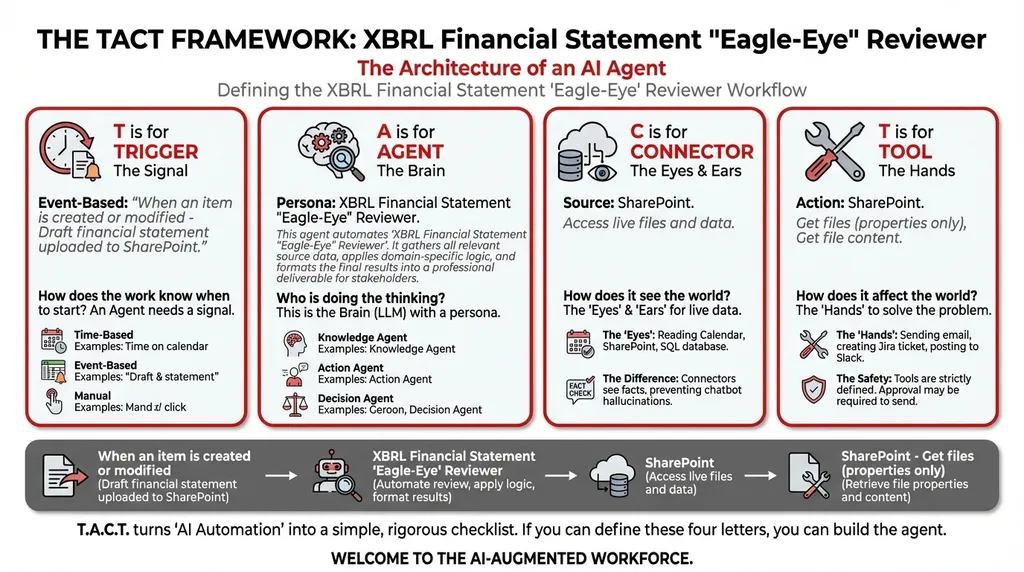
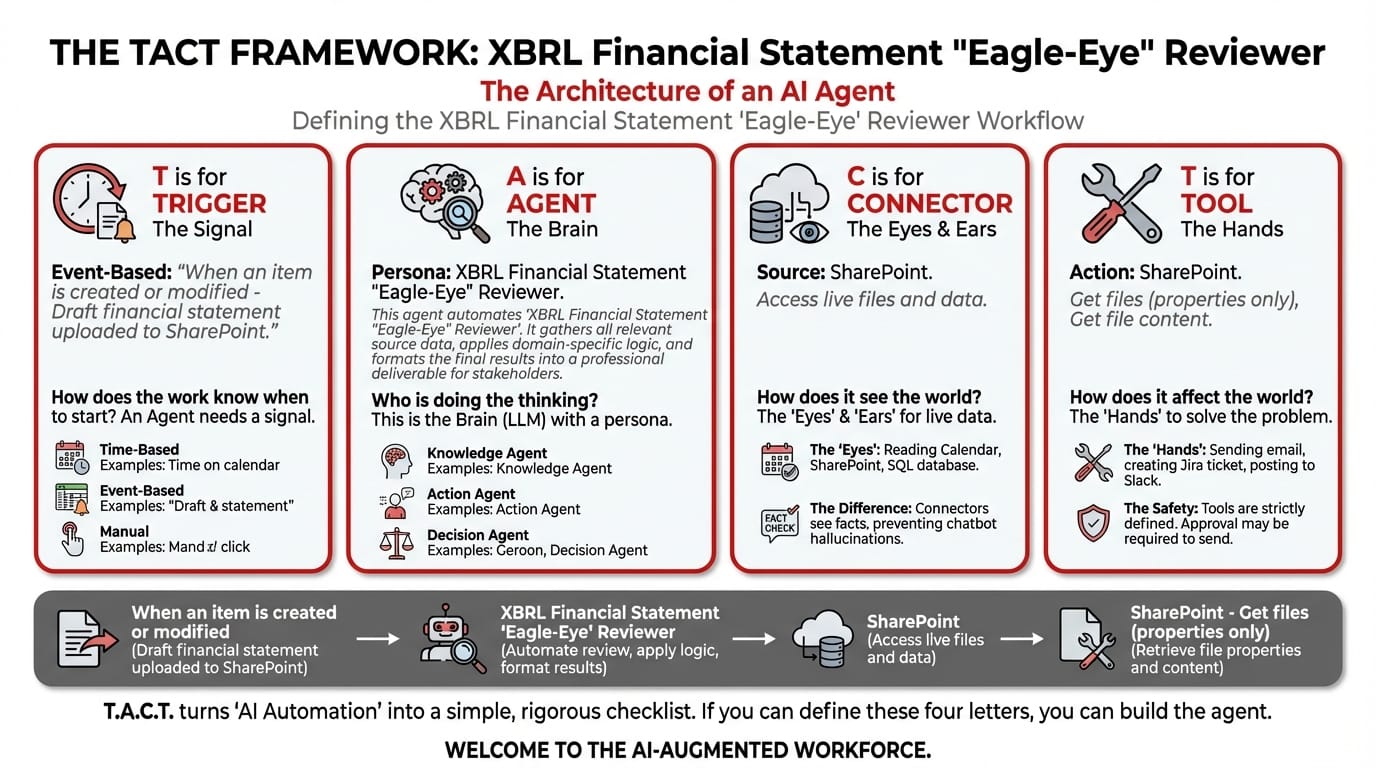
A technical walkthrough for finance and compliance teams who need precision tagging validation — not generic AI summaries.
Who This Is For
If you've ever manually reviewed XBRL-tagged financial statements, you know the pain: hundreds of line items, each requiring a specific taxonomy tag, formatted to exact specifications, cross-referenced against prior-year filings. One mistagged element can trigger a regulatory query. One inconsistency between the current draft and last year's finalized statement can delay your filing.
This walkthrough is for corporate secretaries, financial controllers, and compliance officers who are tired of treating XBRL review as a line-by-line endurance test — and who want to deploy an AI agent that catches tagging errors before they reach the regulator.
Prerequisites: Access to Microsoft Copilot Studio, a SharePoint document library containing your financial statements, and a willingness to stop doing work that a machine should be doing.
Get immediate access to the full JSON schema for this workflow.
The 5-Step Build
Step 1: Configure the Event Trigger
Trigger Type: When an item is created or modified
What to configure: Point the trigger at your SharePoint document library — specifically, the folder where draft financial statements are uploaded for review.
How it works: The moment a team member uploads a new draft XBRL statement (or modifies an existing one), the agent activates. No manual kick-off. No one needs to say "please review this." The upload is the instruction.
Trigger Configuration:
├── Type: When an item is created or modified
├── Source: SharePoint Document Library
├── Path: /Finance/XBRL_Drafts/
└── File Types: .xlsx, .xml, .xbrl
Why event-triggered (not manual): Financial statement review is time-sensitive. During filing season, drafts are uploaded and revised multiple times per day. An event trigger ensures every version gets reviewed — not just the ones someone remembers to check.
Step 2: Define the Agent's Identity and Reasoning Chain
Agent Type: Orchestrator
The XBRL Reviewer operates as an Orchestrator-type agent because it coordinates two distinct analytical tasks: format validation and consistency checking.
System Prompt — paste this into the Agent Instructions field:
You are an XBRL Financial Statement "Eagle-Eye" Reviewer. Your workflow:
- Collect Input Data: Gather all relevant source data, documents, and information.
- Consolidate & Structure: Organize and standardize the collected data.
- Analyze & Process: You excel at tasks humans find tedious. Use specialized chain-of-thought reasoning to catch specific financial tagging errors prior to final submission.
- Validate Results: Review the processed output for accuracy.
- Distribute Output: Format the final results and share with stakeholders.
What makes this different from prompting: When you paste a financial statement into ChatGPT and ask "check this for errors," you get surface-level observations. This agent uses chain-of-thought reasoning — it systematically walks through each taxonomy element, validates the tag against the XBRL specification, and then cross-references the value against the prior year's finalized statement. It's not guessing. It's auditing.
Step 3: Connect to Your Data Sources
Connector: SharePoint
Connector Configuration:
├── Name: SharePoint
├── Site: finance.sharepoint.com/sites/FinancialStatements
├── Purpose: Browse SharePoint sites to access documents and data files
└── Access Level: Read (current drafts + prior-year finalized statements)
Critical setup detail: The agent needs access to two document sets:
- The current draft being reviewed (incoming via the trigger)
- The prior year's finalized, approved statement (the baseline for consistency checking)
Store both in the same SharePoint site but in separate folders. The agent will retrieve both — the draft for validation, and the historical file for comparison.
Why connectors matter here: A chatbot can only see what you paste into it. This agent reads the actual XBRL file directly from SharePoint — every tag, every value, every structural element. No truncation, no copy-paste artifacts, no "I can't process files" errors.
Step 4: Assign the Execution Tools
| Tool | Configuration | Purpose |
|---|---|---|
| SharePoint – Get files (properties only) | Target: /Finance/XBRL_Drafts/ and /Finance/XBRL_Finalized/ |
Lists all available files so the agent can identify the latest draft and the corresponding prior-year statement |
| SharePoint – Get file content | Target: Selected files from Step 1 | Downloads the actual XBRL content for tag-by-tag analysis |
Step 5: Deploy, Test, and Iterate
Testing protocol:
- Upload a known-good financial statement to the trigger folder. The agent should return zero flags.
- Upload a statement with a deliberately mistagged element (e.g., tag "Revenue" as "OtherIncome"). The agent should flag the discrepancy.
- Upload a statement where a line-item value differs by more than 20% from the prior year. The agent should flag the anomaly.
Iteration tip: After the first quarter of live use, review the agent's flag log. If it's generating false positives on specific taxonomy elements that legitimately change quarter-to-quarter (e.g., "ExtraordinaryItems"), add those to an exclusion list in the system prompt.
Sample Output: The Validation Report
XBRL Validation Report — FY2025 Q3 Draft
Agent: Eagle-Eye Reviewer v1.0 | Processed: 15 Oct 2025 14:32 SGT
Summary: 247 taxonomy elements scanned. 3 issues identified.
# Element Issue Type Detail Severity 1 ifrs-full:RevenueTag Mismatch Element tagged as ifrs-full:OtherIncomein current draft. Prior year correctly usesifrs-full:Revenue.🔴 Critical 2 ifrs-full:TradeReceivablesValue Anomaly Current: $4.2M. Prior Year: $2.1M. Δ = +100%. Verify if this increase is intentional. ⚠️ Warning 3 ifrs-full:PropertyPlantEquipmentDecimal Precision Current draft uses 0 decimal places. Prior year uses 2. Potential formatting inconsistency. ℹ️ Info Recommendation: Resolve items 1 and 2 before submission. Item 3 is advisory.
What You've Just Built
In five steps, you've deployed a financial statement reviewer that:
- Never gets fatigued reviewing 247+ taxonomy elements
- Catches tag errors that a human scanning a spreadsheet would likely miss
- Cross-references historical data — something no chatbot can do without manual context injection
- Runs automatically every time a draft is uploaded or modified
- Documents its findings in a structured, audit-ready format
This is the shift from prompting to orchestrating. You're no longer asking AI a question. You've built a system that does the work.
📚 Continue your XBRL and governance automation journey: - Why Manual Directors' Fee Reconciliation Is a Ticking Time Bomb — another financial accuracy workflow - From Manual Drafting to Instant Precedent Matching: Board Resolutions — automate the next governance task - Stop Asking AI the Wrong Questions: The Copilot Prompt Optimizer — foundational reading for all TACT workflows
Close the gap in your operations.
Get immediate access to the full JSON schema for this workflow. By subscribing to the Library, you can copy and paste this architecture directly into Microsoft Copilot Studio, M365 Workflows (Frontier) Agent, or Google Workspace Studio in minutes.
⚠️ The price increases by $100 on the first Thursday of next month.
Every month, we add 4 new agentic workflows to the Library. Because the Library's value constantly grows, the price to access it increases every month. Get access today for $380/year to secure all 16 current schemas—and lock in your rate before the next price hike.